Archive for the 'Web Hosting' Category
If you are using or shopping for a web host, you may have come across the term “LAMP server”. It’s not a type of hardware but, rather, a web server based on open source software. LAMP is an acronym formed from the first letter of each of the four major components:
- Linux (operating system)
- Apache (HTTP server)
- MySQL (database software)
- PHP (scripting language, sometimes replaced or supplemented by Python or Perl)
Linux is an operating system based on Unix, noted for security and stability.
Apache is the web server that receives incoming traffic, processes the requests, and serves up the required web pages. It’s the most popular type of web server.
MySQL is a multi-user database. It can be used to store data that are then served into dynamic web pages. Data could be a retailer’s products, a club’s member list, or your vinyl record collection to show off to site visitors.
PHP is a scripting language used to program web sites. One of its advantages is that its language can be read by humans relatively easily. This allows even novices to begin writing scripts for their web sites.
LAMP web servers are popular because they are stable, well understood, and the open source software can be modified and customized as needed. While the components were all designed separately, they create an effective a package. Here at WebHostingBuzz, LAMP servers are used as LAMP is bundled into the cPanel release.
LAMP servers’ popularity, coupled with the open source nature of the components, means that plenty of documentation and help are available. When you want to learn how to add a feature or program something for your site, just search the WWW as there are thousands of tutorial sites and forums on these components. I programmed a hierarchical navigation menu system for my site using information from tutorial and reference web sites, plus a little help from on-line contacts.
When you choose web hosting on a LAMP server, you’re joining a huge community. Explore each component and you’ll be amazed what you can do to trick out your web site.
No matter what type of web hosting you use, at some point you will need to contact support staff. You may need assistance with a technical issue, you may need to know how to do something, or you may need to understand the source of connection problems. Some planning can help you get more out of your support contacts, and help them to assist you better.
First, be polite It shouldn’t be necessary to say that, but I see a lot of impolite and downright aggressive posts in help forums. Support staff did not deliberately target your server or account It’s almost certainly not their fault that you have issues. Treat them properly.
Learn the proper terminology. Often I see help requests, and I have absolutely no idea what the person is writing about. They are unable to accurately describe the issue or even what they’re seeing on screen, because they don’t know the terminology. If you’re asking for help with your web hosting account, you should know what FTP is, what your home directory contains,
If it’s an e-mail problem, do you access your mail via POP or IMAP, and with what software or web mail?
Did you change something just before the problem appeared? Clearly explain what you changed. If there’s an error message, quote it exactly. If the error message appears in the form of a web page, as many web server errors will, you can copy the message text and paste it into a text file. To show support staff exactly what you’re seeing, take a screen shot (a.k.a screen capture).
If you’re referring to a command that you tried then, as with error messages, quote it exactly. Document what steps you took that lead to the issue or error.
Be able to describe your Internet access setup. Is your computer behind a broadband modem alone, or do you use a router? Is it a separate router connected to the modem, or a single device that combines both modem and wireless router functions? If you don’t know, find out.
Are you running any firewall software on your personal computer? For example, Windows Firewall or ZoneAlarm? Have you recently added or updated this software?
Provide ping or traceroute results if asked. If you don’t know how to perform these simple connection tests, learn. Third-party web based tests are also useful, such as Alerta Spot Check and Down for everyone or just me?
Do you use any scripts on your web site, such as CGI or PHP? Did the issues occur right after adding or updating such a script? If the script is not supplied by the web host, explain what it is and where you got it. If you wrote it, explain the purpose and functions used.
There are other questions I could raise and tips I could provide, but I think you see my point. The more logical, clear and thorough you can be in explaining your issue to support staff, the more likely they’ll be able to guide you or their technical staff to a quick resolution. Plus, sometimes just by examining these points and researching the issue, you’ll find the solution yourself.
Have you ever wanted the security of SSL (Secure Socket Layer) for your web site, but didn’t want the cost of a certificate? If you need only the security and not the stamp of approval from the big issuers, then you can create your own SSL certificate.
Communications over the internet are by default insecure. If e-mail or form inputs are intercepted, your information can be read. That’s why on-line shopping, bank and auction sites use SSL. An SSL connection encrypts the traffic, so even if intercepted it cannot be read. You can tell that you’re using a secured connection by the little padlock icon in your web browser.
Commercial SSL certificates are issued by a certificate authority such as GeoTrust and Verisign. The certificate authority provides third-party validation that the web site is who it says it is. Web browsers are designed to automatically accept certificates issued by the major certificate authorities.
Self-signed certificates are useful when you need the security of SSL encryption, but don’t need a recognizable authority name on the certificate. For an end user, the obvious difference between a certificate issued by a major certificate authority and a self-signed is that the self-signed certificate will generate a browser warning.
The web browser, upon encountering a self-signed SSL certificate, warns the user that it does not recogniae the certificate authority. While this would be unsuitable for on-line sales, it’s fine for many other types of access. As long as your users are aware that you’re using a self-signed SSL cert, it’s not a problem. The first time users connects and receive the warning, they can use browser commands to accept and install the certificate. Once a user installs your cert as a trusted cert, no warnings will appear on subsequent connections.
Note that the level of encryption, and therefore security, are the same with a self-signed cert as with one from a major certificate authority. On one of my web sites I run an installation of SquirrelMail and use a self-signed SSL certificate to provide secure login and use of that web mail application for my users.
Installing a self-signed SSL certificate on a cPanel server
To install on a cPanel server, you need a reseller or VPS hosting account. You’ll also need a dedicated IP address, to separate the site from others on the shared hosting server. Here at WebHostingBuzz, reseller accounts include dedicated IP address, and you may use one of those for your certificate.
Create a self-signed SSL certificate
- Login to WHM.
- Click “Generate a SSL Certificate & Signing Request”.
- Enter “Contact info” with a valid e-mail address.
- Enter or generate a password, making sure it is sufficiently long with a mixture of letters, numbers and symbols.
- Under “Host to make cert for”, enter the domain on which you want the SSL.
- Click “Create”.
- Copy the text displayed for the .key and .crt, and paste them into a text file on your computer. You may need that text in the next steps.
Install a self-signed SSL certificate
- In WHM, click “Install an SSL Certificate and Setup the Domain”.
- Enter the domain name, account user name, and IP address for the certificate in the Domain, User, and IP Address fields.
- Click “Fetch” to paste the .key and .crt files for the domain into the available display spaces, if they are currently on your server. (The first time I did this, clicking Fetch automatically pasted the required data into the fields. When I created later certs, the I had to manually paste in the information.)
- Don’t enter anything in CA bundle: there is no Certificate Authority because you are installing a self-signed cert.
- Click “Submit”, then wait for all processes to complete. WHM will display various lines of information and finally display “Finished Install Process.. “
- Point your web browser to https:// followed by the domain, to see your new SSL connection working.
If you don’t see the SSL commands in your WHM, it may be because you don’t have a dedicated IP on your account. Once you have a dedicated IP assigned to a domain, the SSL Certificate links/commands will appear in WHM.
Since I began using self-signed SSL certificates a few years ago, several free and public domain certificate authorities have appeared. They issue certificates similar to those from the large commercial certificate authorities. The drawback is that most of them are not yet automatically trusted by major web browsers, meaning that users would see the same warning as when using a self-signed certificate. If these free issuers eventually get approval from the major web browsers, they would be a good alternative.
This is the second episode in a the infographic series WebHostingBuzz started last month, aimed to inform & entertain developers, designers, geeks and infographic addicts alike. In this piece we’re taking a look at the history of the the most trafficked websites, as reported by Alexa, Wikipedia and Archive.org Click here to see the full size version. Enjoy and let us know what you think!
640 pixels wide version
Infographic: The Amazing History of Today’s Top 10 Most Trafficked Websites by WebHostingBuzz
800 pixels wide version
Infographic: The Amazing History of Today’s Top 10 Most Trafficked Websites by WebHostingBuzz
It must be a truism that you never need a backup so much as when you don’t have one. More than once I’ve received a panicked call from a friend, client or co-worker after they’ve suffered a drive failure or other data loss. As long as a recent backup is available, a little restoration work leads to a happy ending. Without a backup, the outcome is often more traumatic.
The same is true for your web site. Server hard drives can fail. Whether your web host does periodic backups or not, you need to take responsibility for your own backups. Any popular web hosting control panel should have a backup utility. I’m most familiar with cPanel, used at WebHostingBuzz, and as that’s also one of the most widely used control panels I’ll detail its backup process.
cPanel site backup
- Login to cPanel
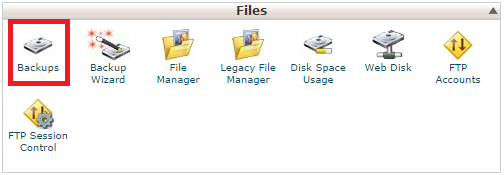
- Click Backups
- Click Download or Generate a Full Web Site Backup
- Select the Backup Destination, choosing Home Directory
- You may enter an e-mail address: the system will send a message to that address when the backup is finished.
- Click Generate Full Backup button.
The backup will create a .tar.gz archive, in this format:
backup-4.23.2011_19-11-18_accountname.tar.gz
The first set of numbers denotes the date of the backups while the second set is the time stamp. This allows you to easily differentiate backups, if you accumulate several.
You may then download that file to your personal computer via FTP.
cPanel’s Full Backup backs up the entire site, not only your web pages, scripts and images, but other features such as mail forwarders, mail accounts, and configuration files. If you need to backup just certain aspects of your site, there are also these individual options:
- Download a Home Directory Backup
- Download a MySQL Database Backup
- Download Email Forwarders
- Download Email Filters
It’s vital that you keep a copy of your web site. If you follow my advice, you will already have a copy of your web pages since you will create those on your local computer prior to uploading. This is safer than editing directly on the server, as I explained in an earlier article.
Keep recent backups of your web site. If you ever need them, you’ll be glad you did.
It can be tough to choose from the thousands of hosting companies. Which ones will be reliable, which ones are to be avoided? I hope I can give you some tips to help you to find a web hosting company worthy of your business, a safe platform for your site.
Assess your own needs, to decide what sort of host you need. If you’re just hosting a hobby site or sharing photos and vacation stores with friends, then a low cost or even free host may suffice. If you need a host for your business or organization’s site, then you need a truly professional host. I’m going to focus my comments on those of us who need a professional host. While there’s no single characteristic of a good host, here are some of the things that I look for:
Active forum
I prefer a host that runs a discussion forum with participation from both staff and clients. Such forums can be a valuable source of ideas, tips and support from fellow clients. I’ve often found great ideas from other clients, and I’ve given help to clients. It’s also important to me that the hosting company’s staff participate in the forums.
Good help/support department
Almost all of us will need help at some point. I want 24 hours/day, seven days/week support availability. A decent ticketing system is important, that tracks each help request with a unique number so that replies and follow-ups are all tied to that ticket. If you think you might use telephone support, choose a host that offers it. Some have toll-free numbers, though this will not be possible from all points in the world. If applicable, test the phone support response by calling the number.
Good control panel
Wikipedia calls a web hosting control panel: “a web-based interface provided by the hosting company that allows customers to manage their various hosted services in a single place.”
While it’s possible to manage a web hosting plan without a GUI control panel, it’s easier with one than without one. It allows many functions to be done easily and quickly via a web page, rather than using specialized commands or contacting support.
A widely used control panel is advantageous, as it means that you can find help and tips from many sources, not just at your own host’s help desk or forum. WebHostingBuzz uses cPanel/WebHostManager, one of the most popular control panels.
Range of hosting plans
A host with various plans and types of hosting enables you to easily upgrade as your needs grow. It’s much easier to upgrade to a new plan with your existing host than to move to a new hosting company.
Reliability
This can be tough to assess, but you’ll know if you’re with an unreliable host. One measure, and only one, is server uptime. This is the percentage of time during the month that a server was up and available for traffic. WebHostingBuzz regularly publishes the monthly uptime figures for its servers.
Good backbone connections
Good connections to multiple Internet backbones assure that visitors’ traffic will be routed quickly, no matter what part of the world they’re in, and they’ll see fast page loads. This is something that you can easily test on any web host. Using the web host’s domain name, or the domain name of any client of that host, do a ping. In Windows, Start > Run: type “command” and hit enter. In the command window that opens, type “ping domainname.com” and enter. The tool will test how long it takes the hosting server to respond, in milliseconds. The lower the number the better. I’ve read that an average ping of 80 ms. is good, that over 100 ms. is bad. My own site at WebHostingBuzz averages 43 ms.
Overall professionalism
Some web hosts are little more than a couple of guys running servers in their parents’ basement. For your web site you want good data centres, good network connections, and a well run business. While anyone can potentially put together a fancy web site, assess the tone and quality of written communications, the level of information given about the host, replies from hosting staff in the forums, etc. Decide whether these are people who seem serious about their business and supporting clients.
Price?
Notice that I did not list price as an important criterion. While price must be considered, the fact is that no matter which host you choose, there is always one that is cheaper. Cheaper is not better. Hosts that compete primarily on price tend to attract price-sensitive clients. Many of those are the clients who abuse the servers with insecure scripts or spamming. I would rather pay more money to have a host concerned with quality and able to employ good support staff.
As you review various hosts on the criteria I listed, look for third-party comments. Google for reviews of the host, being careful to mentally filter out the inevitable noisy negative review. Any web host will have downtime, and any large business will have some unhappy customers. Don’t let a couple of overly harsh reviews sour you on an otherwise good host.
Once you are hosted, be aware of what’s happening with your host, as situations can change. i was with an excellent host that became an acceptable host after an ownership change, and a lousy host after a further change of ownership. I’ve been with a good host for a while now, and it makes a big difference. With a good host, you can rest more easily that your site is in good hands.
A client sent me an urgent message today. Last week he picked up his brand new business cards and then flew to a trade show in another country. At the show he handed out lots of cards to prospective customers. Upon returning home last night he discovered a typographic error in his e-mail address on the cards.
His domain name was correct, but a stray letter had been added to his user name. Instead of ray@hisdomain.com, it read nray@hisdomain.com. Naturally he panicked, because he was expecting contact from new customers, who would receive bouncebacks due to the non-existent mail address.
This is a perfect use for a mail forwarder. Rather than create a new mail account and have my client set his mail software to check that new account, I created a mail forwarder to direct mail from the user name “nray” to his correct mail account ray@hisdomain.com.
In cPanel it’s easy to create mail forwarders, as I explained in my earlier article about mail accounts and mail forwarders.
Create a cPanel mail forwarder
To create a cPanel mail forwarder, use the “Forwarders” function and click the “Add Forwarder” button. In the “Address to Forward” field, enter the mail user name “@” the domain of the cPanel you’re logged into. This creates that as a valid address on the server, even though it does not exist as a mailbox. In the “Forward to email address” field, enter the desired target or destination to which you want the mail forwarded.
Other web hosting control panels should have some similar function.
I could avoid this problem entirely by allowing wildcard addresses to be forwarded to his real mail account. nray@hisdomain.com, helpme@hisdomain.com, or in fact any user name @hisdomain.com would all be forwarded to his mail account. Years ago I used to set my domains to allow exactly this. These days that’s not such a great idea, as it allows a lot of spam.
Spammers send mail to common user names such as sales@, webmaster@, postmaster@, john@, bob@, and many more, which they prepend to thousands of domain names. That’s why if you allow wildcard or, as cPanel often calls it, “catchall” mail, you’ll see a big increase in received spam. For my and my clients’ domains, I think it’s better to disallow wildcard mail.
In just a few minutes, I created the forwarder and now my client can rest easy that he won’t lose this mail. I wish all client issues were solved so easily.
This is the first episode in a vast infograhic series WebHostingBuzz plans to release every other week, aimed to inform & entertain developers, designers, geeks and infographic addicts alike. In this piece we’re taking a look at the history of the Internet usage, observing how much has the game changed in the last few years, who are the biggest players, where are the most users from, who’s speedier and so on. Click here to see the full size version. Enjoy and let us know what you think!
640 pixels wide version
Infographic: From Horseback To Bullet Train: The History Of Internet Usage And Speeds by WebHostingBuzz
800 pixels wide version
Infographic: From Horseback To Bullet Train: The History Of Internet Usage And Speeds by WebHostingBuzz
In an earlier article I described how mail forwarders work. They are a useful feature. So much so that some of us have long lists of forwarders for our domains.
Creation and editing of mail forwarders is normally handled via cPanel’s web interface. Those of us with long lists, though, now find it awkward due to a change made by cPanel developers to sub-divide long lists of items such as mail forwarders into multiple pages, as detailed in an earlier article.
If you have VPS (virtual private server) hosting plan, you might prefer to directly edit the file containing the forwarders. This can be achieved via an SSH connection. For security purposes, SSH may by default be disabled on your server, so you may need to request SSH access from your host.
Once logged in to your VPS as root, over SSH, change directory to etc/valiases/ :
cd /etc/valiases/
In valiases you should see several files, one per domain. If you cannot find that directory, then ask your host, as configuration does vary somewhat, thought that is the most common path.
Use Midnight commander (‘mc’ command), ‘vi’ or ‘nano’ commands to edit those files. To create a forwarder, add lines in this format:
myaccount@domain.com: myaccount@gmail.com, myaccount@yahoo.com
*: :fail: No Such User Here
The last line is necessary to avoid delivery to non-existent mail accounts and addresses.
Root access is one of the many advantages of a VPS hosting plan. It provides more control, more features, and ways to directly access files that are often faster than using the cPanel GUI.
I’m continuing the clock theme of the last couple of posts. When I posted about Daylight Saving Time I included a live clock at the bottom of the post, displaying current Eastern Time (eastern Canada and US). Someone contact me, asking how he could get such a clock for his web site.
I’m old enough to recall the early days of web building. When we wanted some fancy gadget, we usually had to code it ourselves. Code was often shared with others, but often required customization to work with a particular site.
These days it’s much simpler, as many such add-ons are developed by organizations who distribute them as easily-installed packages. Other developers host the tools on their own servers, so that we can display them on our own sites just by inserting code that links to the host server.
There are all kinds of free widgets available to display on your web site. In addition to clocks there are weather reports, stock tickers, sports scores, world population counters and national debt trackers.
Installation, if you can call it that, could not be easier. Just copy the HTML code given by the provider and paste it into your web page or HTML editor of your blog. Yes, it’s that simple.
The analog clock I chose came from clocklink.com, but there are similar ones at worldtimeserver.com other similar providers. Just search for “web clock” and you’ll find plenty. At the bottom of this article, I’ve added a few free widgets to give you some ideas.