One of the easiest content management systems to set up and use is WordPress, the largest self-hosted blogging platform in the world, powering more than 60 million websites worldwide.
That fact may be a key reason why WordPress is in the news right now as the subject of a large-scale attack from a huge number of computers from across the internet – known as an automated botnet attack – attempting to take over servers that run WordPress.
Some are saying that this current attack is the precursor of a botnet of infected computers vastly stronger and more destructive than those of today. That’s because the servers have bandwidth connections that are typically tens, hundreds, or even thousands of times faster than botnets made of infected machines in homes and small businesses.
WordPress’ popularity comes at a price in a situation like this, as a perceived vulnerability in the platform’s ease of use is weak security by users.
That weak security typically means continuing to use the word ‘admin’ as a user name – this is the default administration account that’s created when you first install WordPress – along with a password that brute-force attempts to guess are likely to succeed, which is what’s happening with this attack.
If you’ve disabled the default ‘admin’ account in your WordPress installation – or, even better, you’ve deleted it – and have something else in its place as the main administrator of your WordPress dashboard, that will likely take you out of the immediate target area of the attackers.
And if you’ve set a strong password – at least eight characters and in a combination of upper- and lower-case letters along with numbers and extended characters – you’re in a good position to be passed by if or when a botnet comes calling at your WordPress front door.
Don’t be complacent, though – this attack serves as a great reminder that securing your WordPress blog or website so that no one can get into it unless they’re invited is something you do need to be sure about.
So what can you do to make your site secure enough right now to deter such attacks in the future?
If you still have an administrative user called ‘admin,’ there are two steps to take:
Create a new admin account with a different name and give it a strong password.
Delete the ‘admin’ user account; during that procedure, you’ll be asked by WordPress which other account should you assign posts, pages, etc, created by ‘admin’ to. Choose the new admin account name you just created.
Next, enable two-step verification for each user in your WordPress account. The simplest such service for a WordPress user to install and implement is the open source Google Authenticator. If you have that enabled for your Google account, or other services such as Dropbox or Amazon S3, then you’ll be familiar with how it works.
Grab it now, either by downloading it from the WordPress plugin repository or installing it via the ‘add new plugin’ function in your WordPress dashboard.
In my view, this is the bare minimum you should have set up in your self-hosted WordPress site that gives you a good level of security for your peace of mind. It would make it more difficult to hack into your site.
There’s a lot more you can do as well including steps to take to better secure the server on which your WordPress platform is installed. There’s a great tutorial on the WordPress Codex that can tell you more.
Don’t let spammers, hackers or botnets mess up your presence on the web. You can be secure.
When was the last time you checked your website to ensure that it’s effectively supporting your business goals?
In this age of social communication that’s rapidly evolving as tools and channels like Facebook, Twitter, Pinterest and Vine become part of the mainstream experience for millions of consumers, is your digital presence up to scratch?
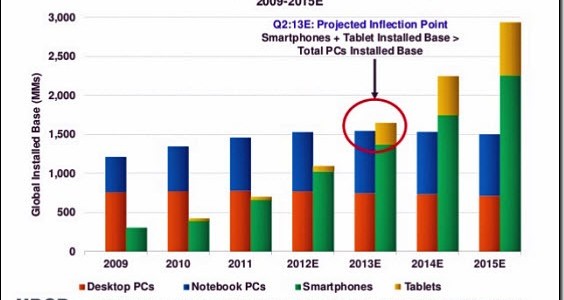
The focus of these questions is largely to do with mobile – although not exclusively – that reflects the trend away from desktop and laptop computers to smartphones, tablets and other mobile devices.
We’re now in the post-PC era, according to some, where access to and interaction with content of every type is on demand, anywhere, any time via the device you have to hand, so to speak.
And if you’re the kind of person who visits a store for product and price research and comparisons and then buys from Amazon or other online retailer via your mobile device – often while in that physical store – you’re not alone.
All this brings many important issues to the forefront of your thinking. Search engine optimization, lead generation and sales lead capture, site performance, content curation and marketing, website usability and engagement…and that’s just for starters.
There’s much to think about and future posts here will discuss many of those topics. Today, though, I’d like to address one that is a good place to begin – usability and engagement. Those two words speak to the question: How easy is it for people who land on your website via a mobile device to actually use your website?
Remember, the clear trend is towards mobile. Even though PCs and other fixed-location and portable devices still account for the vast majority of website traffic, more people are coming to your website via a mobile device, whether on the three-inch screen of an iPhone 4S or the ten-inch screen of a Galaxy Note 10.1 tablet and everything in between.
Mobile devices are ever more powerful with each new model, offering faster processor speeds and gorgeous graphics capabilities. Networks, wifi and cellular, are popping up everyone so you can be online wherever you are and whenever you want.
All of this translates into one key fact – when someone sees your website on their device screen, what happens at that point?
Do they get to what they want with a couple of swipes or taps? Or are they a bouncer, leaving your site in three seconds or less? If the latter, they’re gone and probably for good.
You can see where this is leading, right? Make sure your website is designed for mobile devices?
Absolutely, but not exclusively. You need to ensure that your website works for your visitors when they see your website on whatever device they are using, whether that’s a smartphone, tablet, laptop or desktop PC.
While discussion can get quite technical when you dive into topics like HTML5, not to mention the pragmatism of how much things will cost, there are three simple words you and I can easily understand.
In a nutshell, this is about enabling your content to be seen, consumed, shared and otherwise give value to those who come to see you online, no matter how they do it – with a smartphone, tablet, laptop or desktop PC.
Your website just works and works seamlessly on whatever device, delivering a consistent usability and user experience.
If you want to see what I mean, check out this imaginative video published by tech news website ReadWrite on their website relaunch last October. It’s the best video I’ve seen so far that lets you see exactly what ‘responsive web design’ means to the user.
Making sure your website is usable when seen on any device is not as complex as it may seem. And if you use a content management system such as WordPress, it gets even easier. Note, too, these broad web design trends.
Think about it. Delivering satisfied and engaged website users, on their terms using their preferred device, is today’s business aspiration.
Oh, mobile browsing – one of the hottest topics these days isn’t it? Now that all the cool kids and their grandmas have Internet access on their mobile gadgets (90% of the population has mobile network coverage!), we can take a look at how they’re using it, where, and what should we expect from the future. Click the infographic below to learn more.
The News of the World scandal has turned a spotlight on telephone security. Surprisingly, it’s often easy to hack into phones and voice mail because owners make it easy. Owners often don’t enable or update their security.
“People buy expensive phones and rarely take a good look at its security features,” says Stephen Pearson, managing partner with High Tech Crime Institute in Tampa, Florida. He says that people who fail to setup a passcode on their phone “are fools and asking to be victims”.
Smartphones are, of course, much more than just mobile phones. That makes you more vulnerable if your phone is compromised. Voice messages, e-mail, texts and more are all accessible.
According to Pearson, it’s not difficult to hack into voice mail if stored on the phone. It’s more challenging if stored on a service provider’s server, but possible if the phone is breached first. News of the World staff used various methods to access phones. In many cases it was easy because users had not changed default passcodes such as 1111.
One tactic uses was for a reporter to call a target’s mobile phone, and while they were on the line another reporter would also call the same number. That directed the second reporter to the voice mail, whereupon a default code was entered to listen to messages.
As I wrote in my article “Password” is not a good password, the user is often the weak link. Learn your phone’s security features. Set a good passcode that can’t be easily guessed. And keep your phone physically secure, not leaving it unattended in risky situations.
As I reported in a recent post, late next year the flood of new domain suffixes will begin, due to recent decisions by Internet body ICANN. To commemmorate what may soon be seen as “the good old days” of 22 top-level domains (not including the country-code domains), I thought it would be interesting to see a breakdown of the currentl most popular domains.
Toronto newspaper Globe and Mail has created a graphic illustrating the relative popularity of these most-used domains:
Dot-com will soon have plenty of competition. Under new rules approved this week, top-level domains could be almost anything, such as .guitar, .tofu and .halibut.
ICANN, the Internet body overseeing domain names, voted to open up the top-level domain system to new name applications. No longer will generic top-level domains be restricted to current suffixes such as .com and .net. Applications for new names will be accepted beginning Jan. 12 next year, with the first approvals likely by the end of 2012.
Before you rush to apply for .johnsmith or .beekeeping, know that it won’t be cheap. The application fee is US $185,000, plus an annual fee of $25,000 once the domain is active. That makes it likely that new names will be tied to large companies, organizations or industries.
Price tag aside, this is a huge sea change to the domain name system. Up to now, top-level domains were limited to 22 widely used suffixes such as .com and .org, plus the larger group of 250 country-specific domains such as .ca and .uk. Branding for corporate or personal identity was achieved by registering an appropriate second-level domain, such as coke.com or sally.ca, at a relatively low cost. Under the new system, branding can be in the top-level domain itself, but at a high cost.
Japanese electronics manufacturer Canon says that it plans to apply to register top-level domain .canon. I would expect other large international brands, such as Coke, Sony, Apple, to register their company names early. What will be more interesting will be to see what non-corporate names are registered.
Print the invitation card attached to the letter and show it at the cash desk of any of our restaurants.
Every manager will gladly take your card and issue you a tasty dish of Free Day.
And remember! Free Day is whole five free dishes!
Thank you for your credence.
We really appreciate it.
The e-mail includes an attachment: Invitation_Card_90206.zip
Now, I did not fall for this. My B.S. meter is very good, and I can always spot scams even when others are certain they’re legit.
Just look at the language in the message. There are grammatical errors and generally awkward language, frequent signs of Asian or Russian spam. The name of the event changes, from “Free Five-Course Breakfast Day” to “Free Day”. McDonald’s would be consistent with their promotion name. “McDonalds” is spelled without the apostrophe, which McDonald’s would never do.
The attachment contains a virus, a typical nefarious payload of such messages.
In spite of what to me are obvious signs of a scam, this will fool many recipients. I have no doubt that, if this is sent to the same number of people, this could be as big as the Anna Kournikova worm. Too many computer users are uncritical and gullible. And, a free meal will sound good to them. I hope the virus dessert is equally tasty.
Surgeons at Sunnybrook hospital in Toronto, Canada, are using video game technology as an aid in surgery.
Using Microsoft’s Xbox platform and the hands-free Kinect controller, surgeons access medical images such as X-rays, MRIs and CT scans, without having to touch anything. Not only can many images be quickly accessed, but surgeons no longer need to touch a keyboard or mouse which always added some risk to sterility.
“What this was able to do is take away that last barrier and remove the mouse, remove the interface… and now I just give it hand signs”, said Dr. Calvin Law, a surgical oncologist. “We’re able to control the computer without actually touching anything.”
“You’re always concerned to a degree that every time you move away from the operating table, every time you have to go to another area, you always put your sterility at risk a little bit,” Law says. “There’s nothing like minimizing the risk to absolutely as low as possible.”
Previously, when using a conventional mouse and keyboard, a surgical team member had to scrub out to access the computer images, then scrub in again to return to the surgery. This could add as mush as two hours to a long operation. This time is now saved with the hands-free Kinect system.
The system was created by a first-year surgical resident who is also an electrical engineer, an engineering friend, and a computer engineer. The Kinect camera sensors capture movements and gestures, and two computers and some custom hardware recognize the user and translate gestures into image access commands.
I’m surprised. I thought Google would have listened to the backlash and stopped annoying its users. Last month I wrote about the banner that appears at the top of Google’s search results page, saying:
Come Here Often? Make Google Your Homepage, and two choices: Sure or No Thanks.
Google’s own help forum is filled with complaints about this banner. Last month a Google representative responded, alleviating concerns that this was a virus. She stated that it is a Google promotion, but over a month later Google still has offered no means of disabling the banner or at least preventing it from repeatedly reappearing even to users who clicked “No Thanks”.
Google has dropped some clangers in recent years, gradually eroding their “do no wrong” image. Usually after a consumer uproar, the company backtracks somewhat and removes or softens the offending developments. In the case of this banner though, to date Google appears undeterred. Maybe we need to be more forceful and, as some critics have suggested, stop using Google products for a while. Google, if you’re listening: get rid of this banner! You’re ticking off loyal users.
Sometimes you need to print a document without being connected to a printer. This process is often referred to as using a virtual printer. There are many scenarios when this would be necessary:
You’ve completed a document and spent time making small adjustments to printing options until it looks perfect in the Print Preview. You don’t want to go through all that again once connected to a printer, so you want to print it now to save that state.
You plan to e-mail a document to someone to print it, and you want to know exactly how it will look. You don’t want that recipient to have to adjust printer options or mess up your settings.
You want to send a document to someone who does not have the software required to view it.
You’re using an application that lacks a Print Preview command. You want adjust things to get the print output perfect before wasting any paper.
For all those situations, the solution is to use a virtual printer.
I used to print to file, which creates a .prn file. That .prn file can then be printed by using a free utility that interprets .prn files. That worked well, but required the printer-connected computer to run the free prn utility. For an infrequent recipient, that may not be convenient.
I now use PrimoPDF, which prints to a PDF file. Once installed, from within any application choose the regular Print command and then from list of available printers select PrimoPDF. It’s that easy.
There is a surprising number of options for this free utility. For example, when printing there are five quality profiles:
Screen – smallest files, images suitable for on-screen viewing
Print – larger files, photos retain high quality for printing.
eBook – medium files for web and office, with compressed images.
Prepress – largest files, preserving source image quality if possible.
Custom – allows individual selection of options for colour, PDF version, resolution and more.
You can specify what document properties PrimoPDF writes to the metadata of the pdf file, and password protect the file.
There are other virtual printer utilities, but I can recommend PrimoPDF. It works well for me.